This week:New Service: Audio Total RuntimeSee Details
AUDIO GUIDES · STUDIO NOTES
How to Find the Total Length of Multiple Audio Files on a Mac
ST· 24 September 2026 · AUDIO GUIDES · 13 MIN READ
Quick answer
A Mac will show you the length of one audio file, but Finder has no way to add several lengths together: select a batch and choose Get Info, and you see their combined size rather than their combined duration. To find the total length of multiple audio files on Mac, you can place them in a Music app playlist and turn on the status bar, run Apple’s built-in afinfo command in Terminal on the whole folder, or drop the folder onto Audio Total Runtime, our Mac app for totalling audio, which shows one figure for every file inside, including sub-folders and zip files.
Why Finder won’t show the total length of multiple audio files on Mac
If you have just selected a batch of recordings in Finder and looked in vain for a total, you are in good company. Producers, podcasters, narrators, teachers and DJs all reach this point sooner or later, usually when a client, a platform or a timetable needs one number.
Finder does know how long each file is. Select a single audio file, press Command-I (or choose Get Info), and you will find its Duration under More Info. The difficulty begins when you select several files and do the same: what Finder gathers for the group is their combined size, not their combined running time. There is no way in Finder to add durations together.
So the total has to come from somewhere else. The four methods below run from the tools already on your Mac to the app we built for our own studio, and we note along the way when a free method is all you need.
Method 1: add up audio file lengths in the Music app
The Music app that comes with macOS can total a list of tracks for you, which makes it a reasonable first stop for a modest batch of common files.
Open Music and create a new playlist for the files you want to measure.
Drag your audio files from Finder into that playlist.
Choose View > Show Status Bar.
With the playlist selected, read the status bar: it shows the number of songs and their total time for the list you are viewing.
The formats Music leaves out
Music accepts MP3, AAC (M4A), WAV and AIFF files. It does not accept FLAC, Ogg or Opus, so if your folder mixes formats, those files never reach the playlist and the total comes out short. It is worth comparing the song count in the status bar with the number of files in your folder before you rely on the figure.
Tidying up afterwards
Adding files to Music also adds them to your Music library and, depending on your Music settings, may copy them into your Music folder. If you only wanted a total, remove the playlist and the tracks from your library once you have noted the figure, so that client recordings or rough takes do not linger among your own music.
For a handful of MP3 or WAV files that you need to total once, this is all you need.
Method 2: QuickTime Player, one file at a time
QuickTime Player gives you each file’s length in turn. Open an audio file in QuickTime Player, choose Window > Show Movie Inspector, and the inspector shows that file’s duration. Finder’s Get Info window, described above, gives you the same figure for a single file.
The limitation is that it works one file at a time: you note each duration and add them up yourself, carrying seconds into minutes and minutes into hours as you go. That is perfectly manageable for three files. For thirty, it becomes a long stretch of arithmetic, and every figure copied by hand is another chance for a slip.
Method 3: one Terminal command for the whole folder
If you are comfortable typing a line into Terminal, macOS already includes what you need to total a folder with a single command. afinfo is Apple’s built-in audio file information tool, so there is nothing to install.
Point Terminal at your folder
Open Terminal, which you will find in Applications > Utilities.
Type cd followed by a space.
Drag your folder from Finder into the Terminal window. This pastes the folder’s path for you.
It adds up every audio file in the folder and in all of its sub-folders, and prints a result like this:
10 files, 00:03:14 (194.0 seconds)
File names with spaces are handled without any extra steps. On our test Mac, running macOS 26, afinfo read every format in our test folder, including FLAC, Ogg and Opus; older versions of macOS may not read Ogg or Opus. To make sure nothing has been left out, you can count the audio files in the folder:
If that number matches the file count in the total, every file was measured. If afinfo could not read a file, that file is left out of the total and the count shown with the total will be lower.
If your audio arrived as a zip
Terminal commands of this kind cannot see inside a zip file; if you point afinfo at one, it reports an error rather than a length. Unzip it first with Apple’s built-in ditto command:
Method 4: Audio Total Runtime, for many files, sub-folders and zips
We are a mastering studio in Belfast, and we originally built Audio Total Runtime for our own studio work. It does one job: it tells you the total running time of your audio.
How it works
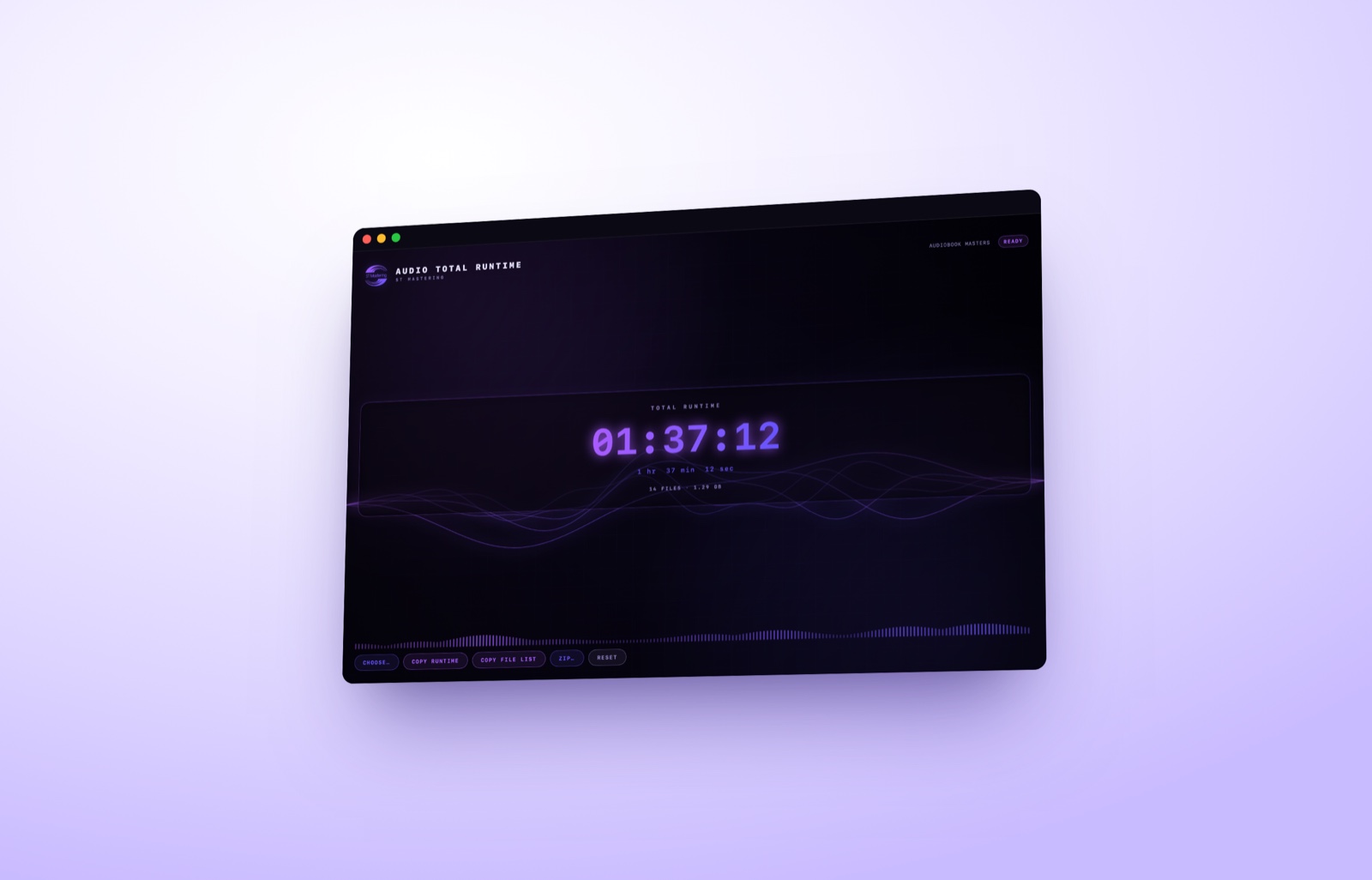
Drag a folder, an archive or a handful of audio files onto its window, or onto its Dock icon, or click CHOOSE… and pick a folder. Audio Total Runtime measures every audio file inside, including files in sub-folders and inside zip, tar, 7z or rar archives, and archives found inside a dropped folder are opened too. You then see one total, big and clear, in hours, minutes and seconds (for example 01:37:12, with 1 hr 37 min 12 sec underneath), together with the number of files and their combined size.
Audio Total Runtime — drop a folder, a zip or a batch of files and read one total.
It reads WAV, AIFF, CAF, FLAC, MP3, M4A, M4B, AAC, ALAC, Opus, Ogg Vorbis, WMA and more, so a folder that mixes formats can be measured in one go. Anything it cannot read is counted and reported as unreadable rather than silently dropped, so the total is never quietly short. Your files are read on your own computer and never uploaded.
In our own test, on a folder of ten audio files in a mix of formats (WAV, AIFF, CAF, MP3, M4A, M4B, AAC, FLAC, Ogg and Opus) spread across sub-folders, Audio Total Runtime and the built-in afinfo command both gave 00:03:14. A five-file folder and a zip of that same folder both came to 00:02:27.
Three buttons for what comes next
COPY RUNTIME puts the total on your clipboard as TOTAL RUNTIME hh:mm:ss, ready to paste into a quote, a listing, an invoice or a delivery note.
COPY FILE LIST puts every file name on your clipboard, one per line, with its extension. It copies names only, without durations.
ZIP… packs all the measured audio into one clean zip, and it works even when the source was a tar, 7z or rar archive.
What it does not do
Audio Total Runtime does not show or list the duration of each file, and it will not tell you which single file is the longest; the per-file command in our Terminal guide covers that. It does not edit, convert or process audio, and it does not check loudness or ACX compliance. If you are preparing an audiobook, our ACX compliance check runs ten measurements on every chapter file you upload, including loudness, peak level, noise floor and file length.
Price and where to get it
There are two ways to get it, and both cost £4.99.
Direct download from the Audio Total Runtime product page: your first 5 measurements are free, so you can try it on your own folders first. After that, a £4.99 one-off licence key works on up to 3 computers, Mac or Windows, in any mix. The Mac version needs macOS 13 or later, the Windows version runs on Windows 10 and 11, and the Mac installer is signed and notarised by Apple.
Mac App Store: Audio Total Runtime on the Mac App Store is £4.99, paid up front through Apple, with no licence key and no free trial. It installs and updates through the App Store, and that edition makes no internet connections at all.
Comparing four ways to get the total runtime of a folder of audio files
Method
Adds it up for you
Sub-folders
Inside zip files
Formats
Cost
Music app
Yes, for the playlist you are viewing
Only the files you add to the playlist
No
MP3, AAC/M4A, WAV, AIFF; not FLAC, Ogg or Opus
Free, built in
QuickTime Player
No, one file at a time
No
No
Files QuickTime Player can open
Free, built in
Terminal (afinfo)
Yes
Yes
No, unzip first with ditto
Every format in our test on macOS 26, including FLAC, Ogg and Opus; older macOS may not read Ogg or Opus
Free, built in
Audio Total Runtime
Yes
Yes
Yes, plus tar, 7z and rar
WAV, AIFF, CAF, FLAC, MP3, M4A, M4B, AAC, ALAC, Opus, Ogg Vorbis, WMA and more
First 5 measurements free on the direct download, then £4.99 one-off; or £4.99 on the Mac App Store
Which method should you use?
Three or four files, once
QuickTime Player or Finder’s Get Info window will serve you well. Note each duration, add them up, and you are finished; there is nothing to install.
A batch of MP3, WAV, AIFF or M4A files
The Music app will total them for you. Check the song count against your file count, and remove the files from your library afterwards if you only needed the figure.
A mixed folder, once
The afinfo command in Terminal handles sub-folders at no cost, and on our macOS 26 test Mac it read FLAC, Ogg and Opus as well; on older versions of macOS, check the file count before you rely on the total. If this is a one-off job and you are at ease in Terminal, it is all you need.
Repeat work, archives and client deliveries
If you total folders every week, receive work as zip, 7z or rar files, or would rather not unzip and type commands each time, Audio Total Runtime gives you the figure from a single drop, and COPY RUNTIME puts it on your clipboard for the quote or invoice. Audiobook producers will also want to confirm that no single file runs over ACX’s 120-minute limit; our guide to checking an audiobook’s total runtime before you submit it to ACX walks you through that.
Whichever route suits the job in front of you, we hope your next total arrives with rather less arithmetic than the last.
Frequently asked questions
Why does the Music app show fewer songs than there are files in my folder?
Music accepts MP3, AAC (M4A), WAV and AIFF files, but not FLAC, Ogg or Opus. Files in those formats are not added, so both the song count and the total time come out lower than the folder’s full contents. The afinfo command in Terminal read them on our macOS 26 test Mac (older versions of macOS may not read Ogg or Opus), and Audio Total Runtime reads FLAC, Ogg Vorbis and Opus.
Why do different tools give slightly different lengths for the same file?
Small differences are normal. MP3 encoders add a few milliseconds of padding, so a 12-second tone saved as MP3 measured 12.04 seconds in our test. On our test folder, the totals from afinfo, ffprobe and Audio Total Runtime still agreed to the second (194.0 s, 194.4 s and 00:03:14).
Can I total the audio inside a zip file without unzipping it?
Not with the Terminal commands: afinfo, mdls and ffprobe cannot see inside a zip, and afinfo reports an error if you point it at one, so you would unzip first with the built-in ditto command. Audio Total Runtime opens zip, tar, 7z and rar archives directly, including archives found inside a folder you drop onto it. In our test, a zip of a five-file folder gave the same total as the folder itself.
Are my audio files uploaded anywhere when I use Audio Total Runtime?
No. Your files are read on your own computer and are never uploaded. The Mac App Store edition goes a step further and makes no internet connections at all.
Can Audio Total Runtime show me how long each individual file is?
No. It shows one total for everything you drop onto it, along with the number of files and their combined size. For a list of each file’s length, longest first, use the per-file command described in our guide to totalling audio in Mac Terminal.
Can I use one licence on both a Mac and a Windows PC?
Yes, if you buy the direct download. The £4.99 one-off licence key works on up to three computers, Mac or Windows, in any mix, and the Windows version runs on Windows 10 and 11. The Mac App Store edition is paid for through Apple and does not use a licence key.
Essential cookies keep your account, cart and uploads working — they're always on. With your OK, we also use analytics and ads cookies to understand what helps people find us. Privacy & cookies policy